whereis is a nice alternative to which for finding the location of unix programs.
$ which ruby
> /usr/local/bin/ruby
$ whereis ruby
> /usr/bin/ruby
Showing posts with label Bash. Show all posts
Showing posts with label Bash. Show all posts
Monday, 14 December 2009


Problems with Snow Leopard and Ruby Gems
UPDATE 2 (update 1 at the bottom with some extra ruby version info)
When you install Xcode make sure is is the latest version. I must have at some point installed the old Leopard version. then when things did not work reinstalled that same old version. I found xcode321_10m2003 in my downloads folder not the older one I had put in a software folder. You may still need to update Ruby to a new version.
Make sure you have the latest Xcode.
I have been trying to get the very simple Sinatra (a light ruby on Rails) setup working following the verysimple instructions on http://www.sinatrarb.com/
Make a file called hi.rb with this inside:
Then run these commands:
They fail with:
After removing the require 'rubygems', is it actually still required ?
To fix this I ran through the instructions at http://hivelogic.com/articles/compiling-ruby-rubygems-and-rails-on-snow-leopard/
Their instructions worked well until the mysql gem which I do not require at the moment but do like to get my set up the same as the tutorial. I found the following line on stackoverflow.
Finally got the basic sinatra working by calling:
What is going on just thought I would check to see if calling the other ruby breaks it, but it works fine.
UPDATE
For completeness and to answer Spyro7's Question:
$ /usr/local/bin/ruby -v
> ruby 1.8.7 (2009-06-12 patchlevel 174) [i686-darwin10.2.0]
$ /usr/bin/ruby -v
> ruby 1.8.7 (2008-08-11 patchlevel 72) [universal-darwin10.0]
When you install Xcode make sure is is the latest version. I must have at some point installed the old Leopard version. then when things did not work reinstalled that same old version. I found xcode321_10m2003 in my downloads folder not the older one I had put in a software folder. You may still need to update Ruby to a new version.
Make sure you have the latest Xcode.
I have been trying to get the very simple Sinatra (a light ruby on Rails) setup working following the verysimple instructions on http://www.sinatrarb.com/
Make a file called hi.rb with this inside:
require 'rubygems'
require 'sinatra'
get '/hi' do
 "Hello World!"
end
Then run these commands:
$ gems install sinatra
$ ruby hi.rb
They fail with:
hi.rb:2:in `require': no such file to load -- rubygems (LoadError)
from hi.rb:2
After removing the require 'rubygems', is it actually still required ?
hi.rb:3:in `require': no such file to load -- sinatra (LoadError)
from hi.rb:3
To fix this I ran through the instructions at http://hivelogic.com/articles/compiling-ruby-rubygems-and-rails-on-snow-leopard/
Their instructions worked well until the mysql gem which I do not require at the moment but do like to get my set up the same as the tutorial. I found the following line on stackoverflow.
$ sudo env ARCHFLAGS="-arch x86_64" gem install mysqlplus
Finally got the basic sinatra working by calling:
$ /usr/local/bin/ruby hi.rbEven though which ruby returns /usr/local/bin/ruby, so why does ruby hi.rb not just work!
What is going on just thought I would check to see if calling the other ruby breaks it, but it works fine.
$ /usr/bin/ruby hi.rb
UPDATE
For completeness and to answer Spyro7's Question:
$ /usr/local/bin/ruby -v
> ruby 1.8.7 (2009-06-12 patchlevel 174) [i686-darwin10.2.0]
$ /usr/bin/ruby -v
> ruby 1.8.7 (2008-08-11 patchlevel 72) [universal-darwin10.0]
Wednesday, 18 November 2009
Scripting pinning Subversion Externals
How to control Subversion externals with scripts (bash):
Command Line setting 1 External
cd ./ProjectB/Reuse/A
svn propset svn:externals "Generic -r 19049 http://svnl/ReuseA/something" .
Command Line setting multiple Externals
cd ./ProjectC/Reuse
echo "A -r 16234 http://svnl/ReuseA/something" > svn.externals
echo "B -r 18086 http://svnl/ReuseB/something" >> svn.externals
svn propset svn:externals . -F svn.externals
#Optional
rm svn.externals
svn update
cd -
Command Line setting 1 External
cd ./ProjectB/Reuse/A
svn propset svn:externals "Generic -r 19049 http://svnl/ReuseA/something" .
Command Line setting multiple Externals
cd ./ProjectC/Reuse
echo "A -r 16234 http://svnl/ReuseA/something" > svn.externals
echo "B -r 18086 http://svnl/ReuseB/something" >> svn.externals
svn propset svn:externals . -F svn.externals
#Optional
rm svn.externals
svn update
cd -
Monday, 2 November 2009
mac ports since OS X Snow Leopard upgrade
Since upgrading to Snow Leopard I have noticed that Mac Ports (Previously called Darwin Ports) started giving me lots of errors. So I manually downloaded and installed the latest version, from here.
I then had to run through the insructions here [1] to clean every thing up:
[1] http://trac.macports.org/wiki/Migration
$ port installed > myports.txt
$ sudo port clean all
$ sudo port -f uninstall installed
The look through myports.txt and install any you need.
$ sudo port install fping scite
I then had to run through the insructions here [1] to clean every thing up:
[1] http://trac.macports.org/wiki/Migration
$ port installed > myports.txt
$ sudo port clean all
$ sudo port -f uninstall installed
The look through myports.txt and install any you need.
$ sudo port install fping scite
Friday, 2 October 2009
Some tips for ~/.inputrc
If you use the command line alot on Unix, Linux or Mac (I know it is a unix) you might be interested in some options that you can set in your ~/.inputrc file.
If the file does not exist you can just create it.
$ cd ~
$ vim ~/.inputrc
My favourite option is (just enter it any where in the file):
set completion-ignore-case on
This makes tab completion non-case sensitive, since discovering this I have cut down massively on the amount of backspace I have to type to get the tab completion I wanted.
Another option that may be useful is:
set match-hidden-files off
Which stops tab completion using hidden files, but since I edit my .bashrc .inputrc etc alot I often do want to tab complete hidden files.
For more info on options just have a look at:
man readline
If the file does not exist you can just create it.
$ cd ~
$ vim ~/.inputrc
My favourite option is (just enter it any where in the file):
set completion-ignore-case on
This makes tab completion non-case sensitive, since discovering this I have cut down massively on the amount of backspace I have to type to get the tab completion I wanted.
Another option that may be useful is:
set match-hidden-files off
Which stops tab completion using hidden files, but since I edit my .bashrc .inputrc etc alot I often do want to tab complete hidden files.
For more info on options just have a look at:
man readline
Wednesday, 16 September 2009
Monday, 31 August 2009
Recursively Search for file with text
Using the find command below in Unix/Linux/OS X terminal you can search from a given path recursively looking in all files for text that matches 'find this text'.
$ find ./searchPath/ | xargs -I {} grep -iHn 'find this text' {}
or
$ grep -R -iHn 'find this text' *
grep Options:
-i makes it incase sensitive
-H outputs the filename before the matching line.
-n outputs the matching line number before the matching line.
-R Recursive from current location
[UPDATE 1]
Ignore Subversion folders
$ find ./ -not -name *'.svn'* | xargs -I {} grep -iHn 'find this text' {}
$ find ./searchPath/ | xargs -I {} grep -iHn 'find this text' {}
or
$ grep -R -iHn 'find this text' *
grep Options:
-i makes it incase sensitive
-H outputs the filename before the matching line.
-n outputs the matching line number before the matching line.
-R Recursive from current location
[UPDATE 1]
Ignore Subversion folders
$ find ./ -not -name *'.svn'* | xargs -I {} grep -iHn 'find this text' {}
Sunday, 19 July 2009
Mac OS X and sshd
To ssh into a mac you need to turn this service on which is very easy.
From the terminal (/Applications/Utilities/Terminal.app)
$ ssh localhost
>ssh: connect to host localhost port 22: Connection refused
Now go to '/Applications/System Preferences.app' -> 'Sharing' then enable 'Remote Login'
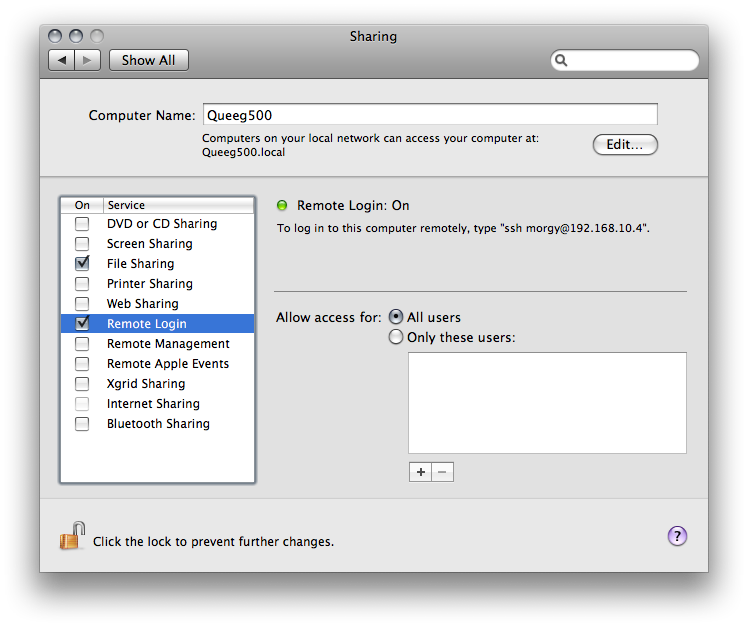
Now Try ssh again:
$ ssh localhost
Password:
Last login: Sun Jul 19 16:31:39 2009 from localhost
$
From the terminal (/Applications/Utilities/Terminal.app)
$ ssh localhost
>ssh: connect to host localhost port 22: Connection refused
Now go to '/Applications/System Preferences.app' -> 'Sharing' then enable 'Remote Login'
Now Try ssh again:
$ ssh localhost
Password:
Last login: Sun Jul 19 16:31:39 2009 from localhost
$
Saturday, 18 July 2009
CocoaDialog DialogBoxes for scripts
I just discovered CocoaDialog, this allows scripts (Ruby, Perl, Bash) to ask for user input in a pretty way. Will be useful for creating double click runnable script/programs
Download .dmg and copy CocoaDialog.app to /Applications/
test run from bash terminal (/Applications/Utilities/Terminal.app)
Example should show this:
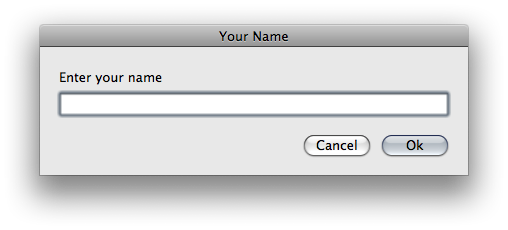
Pressing ok will return:
>1
>enteredText
Pressing cancel will output:
>2
Download .dmg and copy CocoaDialog.app to /Applications/
test run from bash terminal (/Applications/Utilities/Terminal.app)
$ /Applications/CocoaDialog.app/Contents/MacOS/CocoaDialog standard-inputbox --title "Your Name" --informative-text "Enter your name" Example should show this:
Pressing ok will return:
>1
>enteredText
Pressing cancel will output:
>2
Thursday, 23 April 2009
New file and directory permissions on unix
Unix and Linux based sytems define default file permissions with umask.
$ man umask
To see you current permissions just run:
$ umask
>0022
For a more user friendly format:
$ umask -S
>u=rwx,g=rx,o=rx
Person is User, Group and Other.
Properties are Read, Write and eXecute.
umask subtracts from the normal properties set by chmod.
Folder and file are the same, except files will never be set executable by default.
(the -- are just to allign the tables, the numbers are the decimal equivalent for a 1 set in that position)
--421,--421,--421
u=rwx,g=rwx,o=rwx
Say you (User) want full access to a file but not allow Group or Other access.
you want:
--421,--000,-000 ie 700
The mask would be
--000,--421,--421 => 077
to set this just run (and may be add to your ~/.bashrc file) :
$ umask 077
You (User) want full access, Group has read and execute and Other none
--421,--401,--000 ie 750
the mask would be:
--000,--020,--421 => $ umask 027
You (User) have full access and Group and other have read and execute.
--421,--401,--401 ie 755
mask would be:
--000,--020,--020 => $ umask 022
NB:
Q) How do i set umask to make files executable by default?
A) You can not create exectuable file by default using umask, it is thought to be a security issue.
$ man umask
To see you current permissions just run:
$ umask
>0022
For a more user friendly format:
$ umask -S
>u=rwx,g=rx,o=rx
Person is User, Group and Other.
Properties are Read, Write and eXecute.
umask subtracts from the normal properties set by chmod.
Folder and file are the same, except files will never be set executable by default.
(the -- are just to allign the tables, the numbers are the decimal equivalent for a 1 set in that position)
--421,--421,--421
u=rwx,g=rwx,o=rwx
Say you (User) want full access to a file but not allow Group or Other access.
you want:
--421,--000,-000 ie 700
The mask would be
--000,--421,--421 => 077
to set this just run (and may be add to your ~/.bashrc file) :
$ umask 077
You (User) want full access, Group has read and execute and Other none
--421,--401,--000 ie 750
the mask would be:
--000,--020,--421 => $ umask 027
You (User) have full access and Group and other have read and execute.
--421,--401,--401 ie 755
mask would be:
--000,--020,--020 => $ umask 022
NB:
Q) How do i set umask to make files executable by default?
A) You can not create exectuable file by default using umask, it is thought to be a security issue.
Monday, 13 April 2009
module load fail when scripted
The following works on the command line
[1]$ module load something
but fails with [2] when used in make, bash, etc script files:
[2]> module: command not found
This is because the module enviroment has not been loaded, as it is for a normal user session.
Try using some thing similar to this before your module load call:
#!/bin/bash
. /usr/share/modules/init/bash
module load something
[1]$ module load something
but fails with [2] when used in make, bash, etc script files:
[2]> module: command not found
This is because the module enviroment has not been loaded, as it is for a normal user session.
Try using some thing similar to this before your module load call:
#!/bin/bash
. /usr/share/modules/init/bash
module load something
Thursday, 26 March 2009
Ubuntu adding/archiving on to new hard drive
So you just got a new bigger hard drive and want to use it to replace the main storage device on your Ubuntu Linux server, or just add the extra storage to it.
First powerdown (may not be necesariy with SATA) connect new drive and power up.
loggin and get to the terminal.
Find out the new device name, likely to be some thing along the lines of /dev/sdb
$ sudo fdisk -l
----
Disk /dev/sda: 1000.2 GB, 1000204886016 bytes
255 heads, 63 sectors/track, 121601 cylinders
Units = cylinders of 16065 * 512 = 8225280 bytes
Disk identifier: 0x00000000
Device Boot Start End Blocks Id System
/dev/sda1 1 121601 976760032 83 Linux
Disk /dev/sdb: 1500.3 GB, 1500301910016 bytes
255 heads, 63 sectors/track, 182401 cylinders
Units = cylinders of 16065 * 512 = 8225280 bytes
Disk identifier: 0xe53eaeaf
Device Boot Start End Blocks Id System
/dev/sdb
Not Formatted
----
It is the unformatted drive that we had to look out for.
Next Creat a partition table, It is a storage device so only want the one partition.
$ sudo fdisk /dev/sdb
press n to create new partition choose primary, the defaults should be good for use the full disk.
press w to save changes to disk.
This has created partition /dev/sdb1, which requires formatting for ext3 do:
$ sudo mke2fs -j /dev/sdb1
Creat a point to mount it, I only want this to be temprorayt but if it is for permenent installation choose the names carfully.
$ sudo mkdir -p /mnt/insertHostName/tempdrive
Mount it (One off)
$ sudo mount -t ext3 /dev/sdb1 /mnt/insertHostName/tempdrive/
To mount the drive on sytem restarts do:
$ sudo vim /etc/fstab
added this line
/dev/sda1 /mnt/hostname/partitionname ext3 rw,auto,async,errors=remount-ro 0 1
then reload the fstab (mount the new drive)
$ sudo mount -a
Now start the Archiving process (Copying the files from old drive on to new).
The -a flag is very good for this it will Recursively copy maintaining permissions, Access dates and recreate links.
$ sudo cp -a /mnt/insertHostName/oldDrive/* /mnt/insertHostName/tempdrive/
once the copy is complete you can compare the space used available using:
$ df -h
>Filesystem Size Used Avail Use% Mounted on
>/dev/sda1 925G 866G 12G 99% /mnt/insertHostName/oldDrive
>/dev/sdb1 1.4T 866G 451G 66% /mnt/insertHostName/tempdrive
First powerdown (may not be necesariy with SATA) connect new drive and power up.
loggin and get to the terminal.
Find out the new device name, likely to be some thing along the lines of /dev/sdb
$ sudo fdisk -l
----
Disk /dev/sda: 1000.2 GB, 1000204886016 bytes
255 heads, 63 sectors/track, 121601 cylinders
Units = cylinders of 16065 * 512 = 8225280 bytes
Disk identifier: 0x00000000
Device Boot Start End Blocks Id System
/dev/sda1 1 121601 976760032 83 Linux
Disk /dev/sdb: 1500.3 GB, 1500301910016 bytes
255 heads, 63 sectors/track, 182401 cylinders
Units = cylinders of 16065 * 512 = 8225280 bytes
Disk identifier: 0xe53eaeaf
Device Boot Start End Blocks Id System
/dev/sdb
Not Formatted
----
It is the unformatted drive that we had to look out for.
Next Creat a partition table, It is a storage device so only want the one partition.
$ sudo fdisk /dev/sdb
press n to create new partition choose primary, the defaults should be good for use the full disk.
press w to save changes to disk.
This has created partition /dev/sdb1, which requires formatting for ext3 do:
$ sudo mke2fs -j /dev/sdb1
Creat a point to mount it, I only want this to be temprorayt but if it is for permenent installation choose the names carfully.
$ sudo mkdir -p /mnt/insertHostName/tempdrive
Mount it (One off)
$ sudo mount -t ext3 /dev/sdb1 /mnt/insertHostName/tempdrive/
To mount the drive on sytem restarts do:
$ sudo vim /etc/fstab
added this line
/dev/sda1 /mnt/hostname/partitionname ext3 rw,auto,async,errors=remount-ro 0 1
then reload the fstab (mount the new drive)
$ sudo mount -a
Now start the Archiving process (Copying the files from old drive on to new).
The -a flag is very good for this it will Recursively copy maintaining permissions, Access dates and recreate links.
$ sudo cp -a /mnt/insertHostName/oldDrive/* /mnt/insertHostName/tempdrive/
once the copy is complete you can compare the space used available using:
$ df -h
>Filesystem Size Used Avail Use% Mounted on
>/dev/sda1 925G 866G 12G 99% /mnt/insertHostName/oldDrive
>/dev/sdb1 1.4T 866G 451G 66% /mnt/insertHostName/tempdrive
Wednesday, 11 February 2009
Bash command line Args $*
When writing bash scripts the command line arguments are passed as $1, $2 or $* for all arguments. A simple script that prints all the commands might be dsomething like:
----
#!/bin/bash
#Display all
echo $*
----
Some times you might want to access the first argument then hand off the others to another command. 'shift' can be used here
----
#!/bin/bash
#Store first Arg
varOne=$1
#Shift arg array to the left
shift
#Display the rest
echo $*
----
----
#!/bin/bash
#Display all
echo $*
----
Some times you might want to access the first argument then hand off the others to another command. 'shift' can be used here
----
#!/bin/bash
#Store first Arg
varOne=$1
#Shift arg array to the left
shift
#Display the rest
echo $*
----
Tuesday, 10 February 2009
Using Xargs on Mac Terminal
Xargs is used to run commands on the output from other command line programs.
The OS X version is missing the default -I {} that other *nix sytems seem to have.
The following command will search for and print files matching *something*. The xargs is redundant here but gives a good frame work.
$ find . -iname *something* | xargs -I {} echo {}
Or move matching files to another location.
$ find . -iname *something* | xargs -I {} mv {} ../Other/Location
The OS X version is missing the default -I {} that other *nix sytems seem to have.
The following command will search for and print files matching *something*. The xargs is redundant here but gives a good frame work.
$ find . -iname *something* | xargs -I {} echo {}
Or move matching files to another location.
$ find . -iname *something* | xargs -I {} mv {} ../Other/Location
Monday, 12 January 2009
Subversion commit as a different user
I have been using Subversion for revision control of my source control for some time. It was not until recently when using sourceforge.net that my local user name and remote username differed.
$svn --username remoteUserName command
Other SVN (Subversion resources)
http://subversion.tigris.org/
http://svnbook.red-bean.com/
$svn --username remoteUserName command
Other SVN (Subversion resources)
http://subversion.tigris.org/
http://svnbook.red-bean.com/
Saturday, 10 January 2009
Mac Launching GUI apps from the command line
So I am working on my first sourceforge project (FileExplorer), which is a file browser. I really miss the ability to cut files and when pasting I want the contents of folders to be merged not just over written. That aside I have been trying to figure out how to trigger the operating systems default file handler.
The answer found here was quite simple, just call;
$ open somefile.xyz
it also shows away that you can force opening the file with a different application.
This will come in useful for right-click open with menus.
The answer found here was quite simple, just call;
$ open somefile.xyz
it also shows away that you can force opening the file with a different application.
$ open -a Smultron someTextFile.txtThis will come in useful for right-click open with menus.
Tuesday, 30 December 2008
Mac OS X Terminal.app Keybindings
I have previously mentioned this page in a previous post. I had not realised that ~/Library/KeyBindings/DefaultKeyBinding.dict only applies to programs using standard Cocoa AppKit text edit objects.
Well I created this ~/Library/KeyBindings/DefaultKeyBinding.dict so some home end keys would work for those applications.
/* ~/Library/KeyBindings/DefaultKeyBinding.dict */
{
"@\UF702" = "moveToBeginningOfLine:"; /* cmd-left = start of line */
"@\UF703" = "moveToEndOfLine:"; /* cmd-right = start of line */
}
The Terminal.app (found in /Applications/Utilities/) has its own keyboard settings in its preference menu.
escB - move left one word
escC - move right one word (and uppercase first character, lowercase every thing else)
escF - move right one word
esc[H - move to beginning of the line
esc[F - move to the end of line
esc sequence is \033 press ESC to insert the escape sequence.
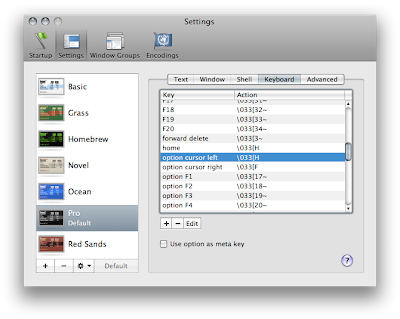 To view other terminal key bindings just take a look at the output of
$infocmp -L
Well I created this ~/Library/KeyBindings/DefaultKeyBinding.dict so some home end keys would work for those applications.
/* ~/Library/KeyBindings/DefaultKeyBinding.dict */
{
"@\UF702" = "moveToBeginningOfLine:"; /* cmd-left = start of line */
"@\UF703" = "moveToEndOfLine:"; /* cmd-right = start of line */
}
The Terminal.app (found in /Applications/Utilities/) has its own keyboard settings in its preference menu.
escB - move left one word
escC - move right one word (and uppercase first character, lowercase every thing else)
escF - move right one word
esc[H - move to beginning of the line
esc[F - move to the end of line
esc sequence is \033 press ESC to insert the escape sequence.
 To view other terminal key bindings just take a look at the output of
$infocmp -L
Tuesday, 16 December 2008
Screen hardstatus
Tips on changeing you screen hardstatus colours. (Original post)
http://www.guckes.net/vortraege/screen/screenrc.2006-03-06
my new ~/.screenrc
----
# Color table:
# 0 Black . leave color unchanged
# 1 Red b blue
# 2 Green c cyan
# 3 Brown / yellow d default color
# 4 Blue g green b bold
# 5 Purple k blacK B blinking
# 6 Cyan m magenta d dim
# 7 White r red r reverse
# 8 unused/illegal w white s standout
# 9 transparent y yellow u underline
hardstatus alwayslastline
hardstatus string '%{= kW}%-Lw%{= KW}%50>%n%f* %t%{= kW}%+Lw%< %{= kG}%-=%D %d %M %Y %c:%s%{-}'
vbell off
http://www.guckes.net/vortraege/screen/screenrc.2006-03-06
my new ~/.screenrc
----
# Color table:
# 0 Black . leave color unchanged
# 1 Red b blue
# 2 Green c cyan
# 3 Brown / yellow d default color
# 4 Blue g green b bold
# 5 Purple k blacK B blinking
# 6 Cyan m magenta d dim
# 7 White r red r reverse
# 8 unused/illegal w white s standout
# 9 transparent y yellow u underline
hardstatus alwayslastline
hardstatus string '%{= kW}%-Lw%{= KW}%50>%n%f* %t%{= kW}%+Lw%< %{= kG}%-=%D %d %M %Y %c:%s%{-}'
vbell off
Tuesday, 25 November 2008
Monday, 24 November 2008
Linking to Scripts from Blogger
I have for a while been looking for better ways to include scripts in blog posts. A link to a downloadable file would be nice. Trying to get it relying on other peoples free web services so that my home server can go down/break/catch fire and all the scripts will still be available.
Tried Google docs but that forced me to change all file extensions to .txt
The free account on http://github.com seems very promising. I have only used Subversion revision control before so may take a while to get use to a GIT revision control system.
This also means I need to set up GIT on all my machines.
So for Ubuntu
$apt-get update
$sudo apt-get install git-core
and Mac OS X
$sudo port -d selfupdate
$sudo port install git-core
My first repo is munkymorgy_scripts this is probably going to be a flat (1 level) store of the useful scripts I post.
http://github.com/munkymorgy/munkymorgy_scripts/tree
NOTE [Added 28/04/2009]:
The following link seems to suggest a good way of displaying code snippets on blogspot.com
http://lukabloga.blogspot.com/2008/10/to-test-new-highlighting.html
Tried Google docs but that forced me to change all file extensions to .txt
The free account on http://github.com seems very promising. I have only used Subversion revision control before so may take a while to get use to a GIT revision control system.
This also means I need to set up GIT on all my machines.
So for Ubuntu
$apt-get update
$sudo apt-get install git-core
and Mac OS X
$sudo port -d selfupdate
$sudo port install git-core
My first repo is munkymorgy_scripts this is probably going to be a flat (1 level) store of the useful scripts I post.
http://github.com/munkymorgy/munkymorgy_scripts/tree
NOTE [Added 28/04/2009]:
The following link seems to suggest a good way of displaying code snippets on blogspot.com
http://lukabloga.blogspot.com/2008/10/to-test-new-highlighting.html
Subscribe to:
Posts (Atom)


 Posts
Posts


