Twitter Updates

Showing posts with label Samba. Show all posts

Friday, 17 July 2009

Setting up Time Machine on any NAS

Start by opening the Time Machine option pane, "/Applications/System Preferences.app" then choose Time Machine under "Systems"

I would also like to point out something I find very odd which is that Time Machine needs to target a particular partition (Drive letter in windows speak, or volume in mac speak). So for a network drive I would create a new network share called timemachine_computerName

[ADDED 20/07/2009 ]
Most of the following is to setup the new network share so that it will work with time machine. I have program TimeMachineAnyNetworkDrive which will setup most of this for you. then just copy the sparsebundle from your home directory to the networkshare and try time machine again.


First problem is apple does not allow any NAS (Network attached storage) device to be used by default, only their premium priced time capsule!
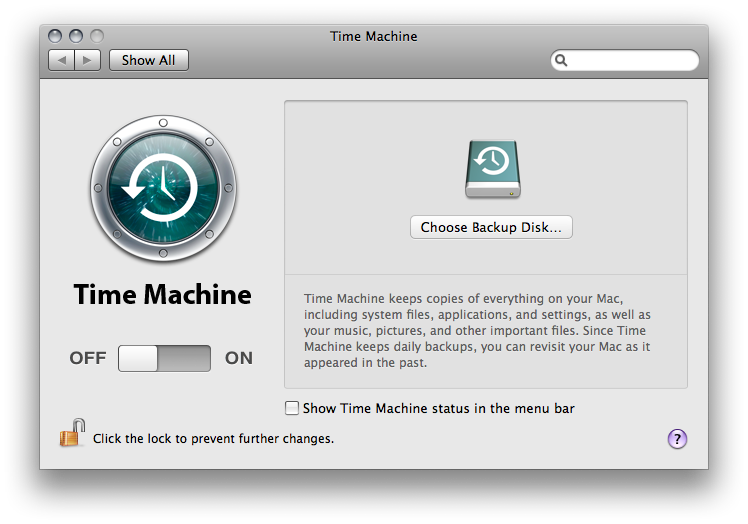
01NO-NAS

To allow non-apple network drives run this command (from the terminal):
defaults write com.apple.systempreferences TMShowUnsupportedNetworkVolumes 1
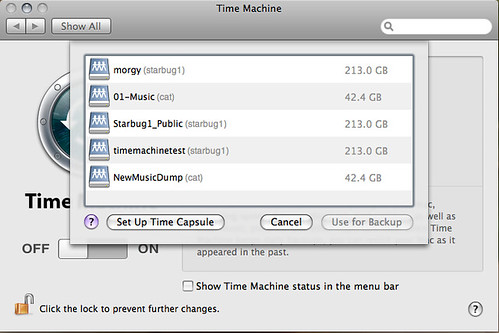
02NAS_ALLOWED

Selected NAS but after first attempt the backup fails.
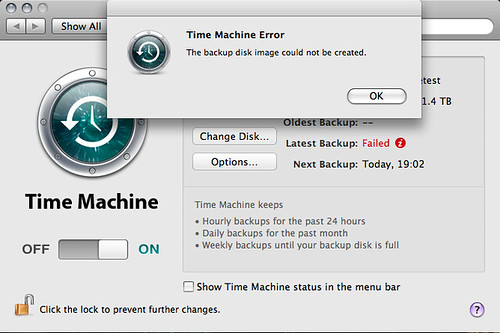
03-NAS-DENIED

What we need to do is create a sparse dmg which gives timemachine all the required file system functions on any filesystem. For this we use the hdiutil command.
NB: The hdiutil command will only work on local (internal and external) drives not network drives.

So we create the sparsebundle (dmg) locally then copy to the remote drive, when copied through the command interface I got a few errors so I copied through finder (graphical interface).

The Sparse bundle name needs to be computerName_MAC.
All the following are typed from the terminal (/Applications/Utilities/Terminal.app) $ inputs > output from the terminal.

To check the computer name you can just run:
$ hostname -s
> Queeg500

The Mac address of the first wired port EN0 is normally used. Every network socket/wifi will have its own MAC. To find your MAC

$ ifconfig en0 | grep ether
> ether 00:1b:63:a6:7e:5b


Sparsebundles takeup only the size of the data they contain, but the size property limits the maximum size. Here we limit to 200Gigabytes.
cd ~
hdiutil create -verbose -size 200g -fs HFS+J -type SPARSEBUNDLE -volname "Backup of Queeg500" Queeg500_001d4ffac84b.sparsebundle
#may be better to move graphically
mv Queeg500_001d4ffac84b.sparsebundle /Volumes/timemachinetest/


Then try the timemachine backup again.
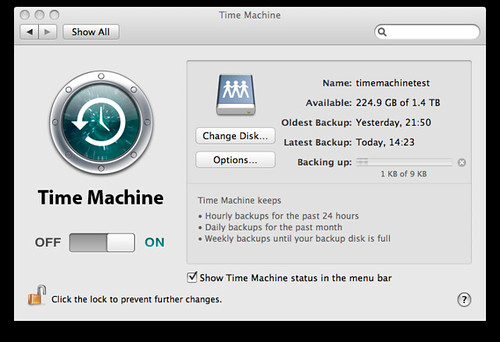
04NAS-WORKING


Very good article here.

Wednesday, 25 March 2009

Get those pesky .DS_stores off my network

Mac OS X has a very annoying habit of creating a .DS_store file in every folder it visits.

This is very annoying in a mixed OS network. So to disable this behaviour for remote drives (Samba, ftp, webdav) you can just enter this at the command line:
$ defaults write com.apple.desktopservices DSDontWriteNetworkStores true

To get at the command line (Terminal) you find it in /Applications/Utilities/Terminal.app

Beware though that it is the .DS_store that finder uses to decide on file location when in grid view and stores the notes on files in there as well. So these features (Notes and rearranging the icons) will be reset every time you leave the folder.

Sources 1 2

Sunday, 30 November 2008

Samba and Finder (OS X)

Recently I have had problems with finder not being able to copy and paste files from my network shares. I could still use quick look, preview etc.

The problem seemed to be specifically with finder although this article seemed to suggest it was todo with samba file locking Maybe finder got a bug in the last mac update and this is just a work around.

Any way adding this option seems to help finder copying files over samba (option goes in the smb.conf file on the server)
[global]
#Stop Mac Finder thinking it can not copy files
locking = no

Wednesday, 5 November 2008

MAC OS X spotlight indexing external drives

So still busy with rebuilding my Macbook, software installs and workflow, so its a good time to try and sort all the niggly things to do with the OS. One thing that I do not really like is spotlights indexing of external drives and network filesystems, so how do I stop it?

According to http://www.pengekcs.com/2007/12/25/taming-spotlight-to-not-index-specific-external-drives-at-all-in-os-x/ I just have to create an empty file called 'metadata_never_index' in the root folder of the drive.

I mount my network drives under ~/mnt so to create this file I just need to do (in Terminal.app)
$touch ~/mnt/Starbug1_Public/metadata_never_index

and my network share should no longer get indexed.
How do I remove all the rubbish the index has already put there ?

Saturday, 26 July 2008

Favourite Pocket Guides

O'Reilly are one of my favourite publishers. When looking for a desktop manual their in a nutshell series is very useful. They also have a very good set of Pocket Guides, some of my favourite ones are:


Wednesday, 4 June 2008

Adding Samba Users

To add new users to Samba with out enabling ssh login to Ubuntu and Debian systems
$sudo adduser --disabled-login newuser
$sudo smbpasswd -a newuser

Don't forget to add the newuser to the smb.conf allowed user property

Saturday, 31 May 2008

Ubuntu configuring samba

Installing Samba on my new server
$sudo apt-get update
$sudo apt-get install samba

Backup configuration
$sudo cp /etc/samba/smb.conf /etc/samba/smb.conf.yyyy.mm.dd

Now configure
$vim /etc/samba/smb.conf

my setup
----
[edited 01/11/09]
My Example Config can be found here
[edit over]

Dont forget to create a samba user (relies on a standard user with that name present) then set the samba password.
$sudo smbpasswd -a username

Final step restart Samba
$sudo /etc/init.d/samba restart