Just in case the $PATH terminal variable gets corrupted, for MAC OS X 10.5 .
export PATH=/usr/bin:/bin:/usr/sbin:/sbin:/usr/local/bin:/usr/X11/bin
Tuesday, 16 September 2008


Bash Double Quotes Single Quotes
When working on the command line some scripts/programmers seem to arbitrarily switch between "Double Quotes" and 'Single Quotes'.
The difference in bash at least is
Double quotes evaluate variables inside of them.
Single quotes are a literal string (NO evaluation).
computer ~ $ fred=result
computer ~ $ echo "fred is $fred"
fred is result
computer ~ $ echo 'fred is $fred'
fred is $fred
The difference in bash at least is
Double quotes evaluate variables inside of them.
Single quotes are a literal string (NO evaluation).
computer ~ $ fred=result
computer ~ $ echo "fred is $fred"
fred is result
computer ~ $ echo 'fred is $fred'
fred is $fred
blogspot.com and firefox 3 cookies
Since upgrading to Firefox 3 when logging into blogger.com then viewing my own blog at blogspot.com I no longer had the options in the top right corner to add new posts and the edit button at the bottom of my posts.
This was due to the fact that I have disabled 3rd party cookies, which meant that my credentails for being logged into blogger.com could not be read by blogspot.com
By adding blogger.com to the allowed list I now remain logged in when viewing my blog on blogspot.com. Is this a security risk can any site now read my blogger.com cookies?
Here is the setting that got it working again.
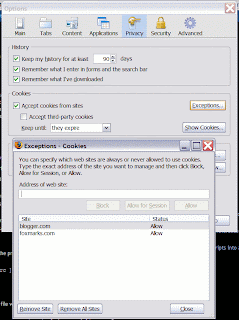
This was due to the fact that I have disabled 3rd party cookies, which meant that my credentails for being logged into blogger.com could not be read by blogspot.com
By adding blogger.com to the allowed list I now remain logged in when viewing my blog on blogspot.com. Is this a security risk can any site now read my blogger.com cookies?
Here is the setting that got it working again.

Sunday, 14 September 2008
Setting up the terminal
This was something I discovered a long time ago and could not find an earlier entry about it.
Certain Mac OS X terminal programs read the properties from the ~/.bash_profile and some fom the ~/.bashrc.
NB: ~ means the users home directory. and files beginning with a dot '.' are hidden files in unix speak. Something rc often refers to configuration files for the something program.
A good soloution to the problem is to make .bash_profile load your .bashrc, like so
if [ -f ~/.bashrc ]; then
. ~/.bashrc
fi
A very basic .bashrc file would look something like
#.bashrc file for users terminal /command line preferences
# This is a comment. MAC-UK keyboards type alt-3 for a # character
#Add a shared scripts folder to the Path
export PATH=$PATH:/Users/Shared/Scripts/
#make ls look pretty with colours (list your files)
alias ll='ls -l -FG'
alias ls='ls -AFG'
Friday, 12 September 2008
Twitter to update Facebook Status
Found this Facebook app to allow Twitter tweets to appear as your Facebook status
http://apps.facebook.com/twitter/
Install plugin (above link), enter twitter account details, then select allow status updates.
Read about in the article
http://www.twistimage.com/blog/archives/twitter-will-update-your-facebook-status-heres-how/
http://apps.facebook.com/twitter/
Install plugin (above link), enter twitter account details, then select allow status updates.
Read about in the article
http://www.twistimage.com/blog/archives/twitter-will-update-your-facebook-status-heres-how/
Tuesday, 9 September 2008
An Applescript Preference Systems
I found the basis for an applescript preference systems at macosxhints.
I have corrected a few typos and here it is.
tell application "Finder"
activate
end tell
(*
Preference system version 1
Chris J. Shull
themacgeek@comcast.net
http://home.comcast.net/~themacgeek/
The code is free. Re-use at will, but please leave this acknowledgement in your code.
Feel free to email me and tell me you've found it helpful!
*)
---Base prefs snippet
set prefname to "net.munkymorgy.pref" --this will be the filename
set prefcontent to "default " --this will be the content of the pref file. NOTE that you can create multiple lines
set prefpath to FindPrefFolder() --finds the path to the user's Prefs folder
set ContentParaNumber to 1 --is the paragragh that will be found in a single preference finder. change it throughout the script to switch paragragh found
---End of Base
--write prefs snippet (overrides original)
if CheckIfExists(prefname, prefpath) is true then DeleteAFile(prefname, prefpath)
MakeAFile(prefname, prefcontent, prefpath)
display dialog (prefpath & " " & prefname)
--end write prefs
---read Prefs snippet
if CheckIfExists(prefname, prefpath) then
set pref to paragraph ContentParaNumber of ReadAFile(prefname, prefpath)
set ThereArePrefs to true
else
set ThereArePrefs to false
end if
if ThereArePrefs then display dialog pref --or whatever you want
---End read
---Subroutines-for-preferences-----------------
on UnixfyPath(stringer, origchar, newchar)
set the testlist to the text items of the stringer
repeat with letter in testlist
set let to letter as string
set orig to origchar as string
if let is orig then
set the contents of the letter to newchar
end if
end repeat
set the newpath to "/" & (the testlist as text)
return the newpath
end UnixfyPath
on MakeAFile(filename, filecontents, folderpath)
tell application "Finder"
do shell script ("echo \"" & filecontents & "\" | cat > \"" & folderpath & "/" & filename & "\"")
end tell
end MakeAFile
on ReadAFile(filename, folderpath)
tell application "Finder"
set filecontent to do shell script "cat \"" & folderpath & filename & "\""
end tell
return filecontent
end ReadAFile
on DeleteAFile(filename, folderpath)
tell application "Finder"
do shell script "rm \"" & folderpath & filename & "\""
end tell
end DeleteAFile
on CheckIfExists(filename, folderpath)
tell application "Finder"
set folder_cmd to ("find \"" & folderpath & filename & "\"")
try
do shell script folder_cmd
set worked to true
on error
set worked to false
end try
end tell
return worked
end CheckIfExists
on FindPrefFolder()
tell application "Finder" to set libpath to path to home folder
set userName to do shell script "whoami"
set UnixPath to UnixfyPath("Users:" & userName & ":", ":", "/")
set prefpath to UnixPath & "Library/Preferences/"
return prefpath
end FindPrefFolder
--End-of-Subroutines-for-preferences-----------------
I have corrected a few typos and here it is.
tell application "Finder"
activate
end tell
(*
Preference system version 1
Chris J. Shull
themacgeek@comcast.net
http://home.comcast.net/~themacgeek/
The code is free. Re-use at will, but please leave this acknowledgement in your code.
Feel free to email me and tell me you've found it helpful!
*)
---Base prefs snippet
set prefname to "net.munkymorgy.pref" --this will be the filename
set prefcontent to "
set prefpath to FindPrefFolder() --finds the path to the user's Prefs folder
set ContentParaNumber to 1 --is the paragragh that will be found in a single preference finder. change it throughout the script to switch paragragh found
---End of Base
--write prefs snippet (overrides original)
if CheckIfExists(prefname, prefpath) is true then DeleteAFile(prefname, prefpath)
MakeAFile(prefname, prefcontent, prefpath)
display dialog (prefpath & " " & prefname)
--end write prefs
---read Prefs snippet
if CheckIfExists(prefname, prefpath) then
set pref to paragraph ContentParaNumber of ReadAFile(prefname, prefpath)
set ThereArePrefs to true
else
set ThereArePrefs to false
end if
if ThereArePrefs then display dialog pref --or whatever you want
---End read
---Subroutines-for-preferences-----------------
on UnixfyPath(stringer, origchar, newchar)
set the testlist to the text items of the stringer
repeat with letter in testlist
set let to letter as string
set orig to origchar as string
if let is orig then
set the contents of the letter to newchar
end if
end repeat
set the newpath to "/" & (the testlist as text)
return the newpath
end UnixfyPath
on MakeAFile(filename, filecontents, folderpath)
tell application "Finder"
do shell script ("echo \"" & filecontents & "\" | cat > \"" & folderpath & "/" & filename & "\"")
end tell
end MakeAFile
on ReadAFile(filename, folderpath)
tell application "Finder"
set filecontent to do shell script "cat \"" & folderpath & filename & "\""
end tell
return filecontent
end ReadAFile
on DeleteAFile(filename, folderpath)
tell application "Finder"
do shell script "rm \"" & folderpath & filename & "\""
end tell
end DeleteAFile
on CheckIfExists(filename, folderpath)
tell application "Finder"
set folder_cmd to ("find \"" & folderpath & filename & "\"")
try
do shell script folder_cmd
set worked to true
on error
set worked to false
end try
end tell
return worked
end CheckIfExists
on FindPrefFolder()
tell application "Finder" to set libpath to path to home folder
set userName to do shell script "whoami"
set UnixPath to UnixfyPath("Users:" & userName & ":", ":", "/")
set prefpath to UnixPath & "Library/Preferences/"
return prefpath
end FindPrefFolder
--End-of-Subroutines-for-preferences-----------------
Turning applescripts into apps
This may seem very simple to those have done it before but it took me a while to figure it out.
Once you have written your applescript and saved it as normal.
File -> Save As and change format to application.
When it is saved it will be a *.app
Once you have written your applescript and saved it as normal.
File -> Save As and change format to application.
When it is saved it will be a *.app
Subscribe to:
Posts (Atom)


 Posts


